


Dayroom brings your team together in one AI-native workspace
Your conversations, docs and tasks live side by side, with AI built in from the start.
An illustrated park that follows your time of day: the Dayroom team works at a table under a big tree beside the Dayroom building. Above the table, a stack of notifications updates as they work: Call started, Design review, as Amara starts a call on her laptop; Task completed, Launch checklist, from Jon; Notes sent to 4 people and Draft ready, Weekly update, from the companion; and Joined #launch, as Kofi waves.
Dayroom at a glance
- Free to startRooms, DMs, calls and catch-up
- AnywhereBrowser, Mac and Windows
- Bring your historyWhatsApp and Slack imports
- Show up as youCharacters for everyone
Currently used in 20+ countries
A morning in #launch from first message to catch-up
Ask your companion what you missed. It DMs you “Here’s what you missed”, with links to the messages behind it.
The demo shows the same story twice: on the left as a timeline of one morning, where each message, task, call and note appears at its minute, and on the right as the Dayroom app.
- Amara posts in #launch: “Can we ship the welcome flow on Friday?”
- Kofi replies in a thread: “Design's ready. Just needs copy.”
- Amara asks “@Works turn this into a task”. Works drafts “Ship welcome flow”, due Friday, for Kofi and Amara. She reviews it, chooses Create, and the task lands on the board.
- Kofi and Amara take a quick call in a phone booth, with Notes on. Afterwards the meeting notes arrive in both their DMs, and Kofi moves the task to In progress.
- You ask your companion what you missed. It DMs you “Here's what you missed”, with links to its three sources: Amara's message in #launch, the task in Works and the call's meeting notes.
One shared context
Rooms, threads, calls and tasks stay connected, so nothing gets lost between apps.
AI built in
Your companion catches you up, answers with sources and drafts the next step.
Drafts wait for you
Tasks and messages arrive as drafts. Nothing is created or sent until you say so.
Your first room is ready.
Free for teams of up to 10.
Inside Dayroom
Talk, plan and catch up without switching apps.
It starts with a conversation. The tasks, calls and context it creates stay attached to it, and you decide what happens next.
talk1 of 4
Every conversation in its place
Talk in rooms, follow a thread, or call when typing gets slow. Each conversation stays with the people and the project it belongs to.
An illustration of Talk. In the #launch room, Kofi replies to Amara, the message gets reactions and a thread opens with two replies. On a call, Kofi shares his screen, then the room gathers around one table. Two teammates step into a phone booth that shows Busy to everyone outside. A WhatsApp chat export is imported, Amara picks her name, and the old messages appear marked From WhatsApp.
#talk · 1 of 4
Rooms, DMs and threads
Rooms for every team and project, DMs for the quick stuff, and threads that keep side conversations tidy. Reply to anyone’s message in a DM when it’s better said one to one.
- Create a room
- Invite your team
- Reply in a thread
Dayroom Free includes 3 rooms and all your DMs.
#talk · 2 of 4
Calls, screen share and Gather
Start a call with camera and screen share, or Gather the whole room around one table.
- Start a call
- Share your screen
- Gather the room
Direct calls hold up to six people. Gather can hold more.
#talk · 3 of 4
Phone booths for private calls
Step into a booth in the office for a private call. Teammates can see the booth is busy, not what’s said.
- Walk to a booth
- Call face to face
- Walk back out
#talk · 4 of 4
Bring your WhatsApp and Slack history
Import a WhatsApp chat or a whole community, or a Slack export, and keep your history together. Update a WhatsApp group later from a newer export.
- Export
- Import
- Pick which one is you
Slack exports include file links, not the files. Direct messages aren’t imported.
plan2 of 4
Projects and tasks right beside the chat
Works turns talk into plans. Start a project from any conversation, chat with its people, track tasks on a board or calendar, and keep everyone’s to-dos in one list.
Illustration of Works in four short scenes. From the #launch room, a project called Welcome flow is started with the Product template and picks up the room’s four members. On its board, Write the welcome copy moves from To do to In progress, and the same tasks then appear on a week calendar. In #launch, @Works turns a message into a draft of two tasks; a title is edited and the tasks are created. In To-dos, two items are ticked off, a Works assignment arrives automatically, and the Team tab shows everyone’s tasks.
Inside every project
A place for the whole conversation
Open Chat in Works to share ideas with your project’s people. Messages stay with the project, so the discussion is easy to find again.
Your messages on the right. Teammates on the left. The same familiar bubbles in meeting chat.
Example conversation · Works project chat
#plan · 1 of 4
Projects from any conversation
Start a project from a room and it stays with that room’s people. Six starting templates: general, product, engineering, marketing, HR and operations.
- Start a project from a room
- Pick one of six templates
- Plan and chat with the room’s people
#plan · 2 of 4
Board and calendar views
One set of tasks, as a board or a calendar. Assignees, priority, due dates and a timeline of what changed.
- Add tasks with assignees, priority and due dates
- Switch between board and calendar
- See a timeline of what changed
#plan · 3 of 4
@Works drafts tasks you review
Ask @Works to turn a message into tasks. You edit the draft, then create it.
- Ask @Works to turn a message into tasks
- Edit the draft
- Create it
Part of Dayroom AI.
#plan · 4 of 4
Personal and team to-dos
Your own list and your team’s, with Works assignments added for you.
- Keep your own list
- See your team’s
- Works assignments are added for you
catch-up3 of 4
An AI companion that keeps you in the loop
Ask what you missed and get a short answer with links to the messages behind it. Your companion drafts replies and to-dos, then waits for you.
Illustration of a direct message with the Dayroom companion in four short scenes. Asked “What did I miss?”, it answers in three plain bullets: Amara wants the welcome flow out on Friday, Kofi says the design is ready and just needs copy, and Maya shared the FAQ draft. Asked when the welcome flow ships, it answers Friday with two numbered sources, and the second source opens Kofi’s message from #launch at 10:26. After a call ends, meeting notes arrive with a summary, a decision, two to-dos and the line “Sol chose not to be transcribed”, with Notes on shown. Finally it drafts two cards, a to-do and a DM to Kofi, both waiting for you; the to-do is created and the DM keeps waiting.
#catch-up · 1 of 4
“What did I miss?”
A quick catch-up on your rooms and DMs, in plain words.
- Ask your companion what you missed
- Read a short catch-up of your rooms and DMs
- Open the messages behind it
Catch-up is free.
#catch-up · 2 of 4
Answers with sources
Ask about your team’s rooms and files. Every answer links to its sources, and access is checked on every lookup, so it only uses what you can see.
- Ask about your rooms and files
- Read a short answer
- Open its sources
Part of Dayroom AI.
#catch-up · 3 of 4
Meeting notes in your DM
Notes are on by default and the workspace owner can switch them off. Everyone sees Notes on, anyone can choose Don’t transcribe me, and muted microphones are never captured. The summary arrives in each participant’s DM.
- Everyone in the call sees Notes on
- Choose Don’t transcribe me if you’d rather not be
- The summary arrives in your DM
Part of Dayroom AI.
#catch-up · 4 of 4
Drafts that wait for you
Your companion prepares replies, DMs and to-dos as cards. Nothing is created or sent until you choose Create or Send.
- Your companion prepares a card
- Review it
- Choose Create or Send
office4 of 4
An office you can actually walk into
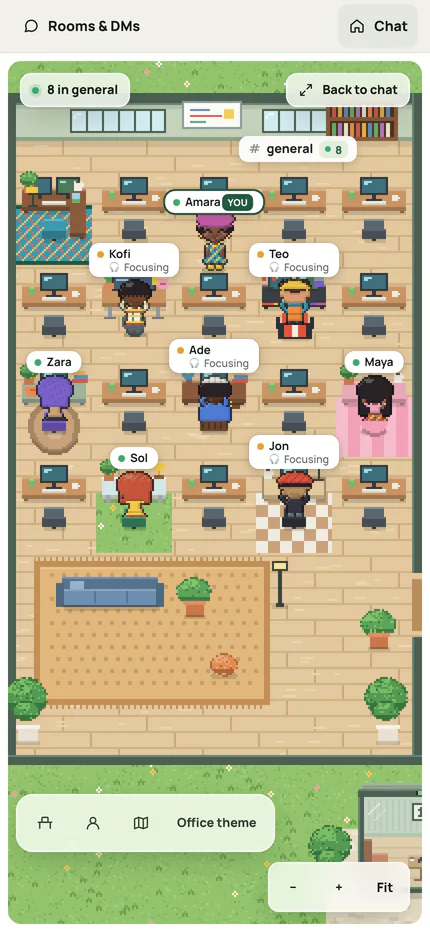
See who's around at a glance. Settle in at your desk, wander over to a teammate, or step into a booth. Working apart feels a little more like working together.


Illustration of the Dayroom office in four short scenes. The camera glides past three office themes, Courtyard campus, Open loft and Village, where teammates work at desks, take calls, eat lunch and chat. Six characters wearing a gele, a kufi, a hijab, locs, an agbada and kente turn on a strip of lawn. Pressing ⌘D walks a character from the door to their own desk, where a Your desk plate appears. The same office then opens in a browser window, a Mac window and a Windows window.
#office · 1 of 4
A pixel office for your team
Three office themes to choose from: Campus, Loft and Village. See who's around at a glance, then wander over to a teammate.
- Choose Campus, Loft or Village
- See who's around at a glance
- Wander over to a teammate
#office · 2 of 4
Characters that look like you
Gele, kufi, turban, hijab, headwrap, locs, braids, agbada, kaftan, dashiki, kente and more. Saved outfits stay private; teammates see the look you're wearing.
- Choose your hair and headwear
- Pick an outfit and colours
- Teammates see the look you're wearing
Saved outfits stay private.
#office · 3 of 4
Your own desk
Pick a desk and Dayroom remembers it. ⌘D or Ctrl+D walks you there.
- Pick a desk
- Dayroom remembers it
- Press ⌘D or Ctrl+D to walk there
#office · 4 of 4
In your browser, on Mac or Windows
Nothing to install: Dayroom runs in your browser, on your phone too.
- Open Dayroom in your browser
- Or on your phone
- Or settle in with the Mac or Windows app
The Mac and Windows apps are early builds.
A day in Dayroom
One desk. Every hour of the day.
An illustrated desk in the Dayroom office, by a big window that looks out on the park, from morning to night. At 08:00 there is coffee, your status says Catching up, and the Dayroom companion pops up beside the laptop with what you missed. At 13:00 you are on a call with notes on; Kofi walks past and waves, and when the call ends the companion brings the notes to your DM. At 16:00 the afternoon sun crosses the desk, your status says Focusing, and Launch checklist moves to Done on the Works board. At 20:00 the lamp clicks on, you post “@Zara it’s yours” in #launch for Zara, for whom it is 08:00, then close the laptop and sign off.
-
08:00
Catch up
Coffee, then: what did I miss?
-
13:00
Meet
A quick call. Notes land in your DM.
-
16:00
Make
Heads down. Tasks move across the board.
-
20:00
Hand off
Pass the baton to the next time zone.
Your office, wherever you are
Open Dayroom in your browser, on your computer or phone.


Open Dayroom
Your character comes with you.
Works in any up-to-date browser. Nothing to install.
MAKE A LITTLE YOU
Show up as yourself
Locs, braids, gele or kufi. A favourite colour. Make a character with a lot of you in it, and bring it with you when you sign up.
Use the left and right arrow keys, or drag, to turn your character around.
Woman character · Braids, black hair · yellow tee · blue jeans · sneakers · tote bag
Bring this look to DayroomBefore you pull up a chair
A few good questions
What is Dayroom?
An AI-native workspace where your team’s conversations, docs and tasks live together, with AI built in from the start. It helps your team move faster, stay aligned and keep context in one place.
Is it free?
Yes. Dayroom Free covers rooms, DMs, calls and companion catch-up for teams of up to 10 people, including the owner. Free includes the last 90 days of message history. Older messages stay saved; upgrade to read them. Dayroom AI is a paid plan that adds answers with sources, drafts, meeting notes and @Works.
Do we need to install anything?
No. Dayroom runs in your browser, on your phone too. Nothing to install.
Can we bring our old chats?
Yes. Import WhatsApp chats and communities, or a Slack export. You can update an imported WhatsApp group later from a newer export.
What does the AI do with our messages?
Your companion only uses what you can already see, checks access on every lookup and links to its sources. It drafts; you decide what gets created or sent. Messages aren’t end-to-end encrypted, so read our privacy notice before sharing anything sensitive.
Who sees my character’s outfits?
Saved outfits are private. Teammates only see the look you’re wearing.
Can we use Dayroom from Claude or ChatGPT?
Yes. Connect Claude, ChatGPT or another AI app that supports MCP, approve one workspace, then ask it to catch you up or reply for you. It only sees what you can see. Read the setup guide.